GoHighLevel Workflows: Templates, Examples, and How to Use Them
Want to automate lead follow-ups, appointment reminders, email sequences, review requests, and missed-call responses without building every workflow from scratch?
GoHighLevel workflows connect triggers and actions to help your business handle repeatable tasks. Ready-made templates can give you a useful starting point, so you can focus on adapting the process instead of creating every step yourself.
Explore GoHighLevel Workflow Templates Read the Automation GuideIf you're new to HighLevel, start with the template gallery below. It covers common workflows for appointments, email nurturing, social media engagement, lead response, reactivation, and customer reviews.
GoHighLevel Workflow Templates: Browse the Gallery
These template examples are organized by the task they can help with. Select a card to open the GoHighLevel workflow template page using our affiliate link. The supplied preview images are included to make the gallery easier to scan.
Template availability, names, and setup requirements may change. Use the gallery as a guide to the types of workflows to look for, then confirm the current details in HighLevel's library.
Appointment Confirmation + Reminder
Confirm a booking and send reminders so customers know when their appointment is scheduled. Review the timing and cancellation behavior before activation.
View Workflow Templates →
Email Drip Sequence
Send a planned series of emails over time. Useful for welcoming new leads, educating subscribers, or explaining your service before a sales conversation.
View Workflow Templates →
Appointment + Survey + Review
Coordinate appointment reminders with a post-service survey or review request. Make sure review requests are appropriate for the customer journey and comply with platform policies.
View Workflow Templates →
Instagram Comment Automation
Explore ways to connect supported Instagram interactions with follow-up actions. Check account permissions and supported triggers before building a live process.
View Workflow Templates →
Fast 5 Lite
Explore a rapid follow-up approach for new inquiries. Review the actual template steps and adjust the cadence to your lead source and sales process.
View Workflow Templates →
Long-Term Nurture / Reactivation
Stay in touch with eligible leads who are not ready to buy yet. Use relevant messages and sensible intervals instead of sending frequent, repetitive promotions.
View Workflow Templates →
FAQ Auto Reply
Help answer common questions with an appropriate automated response. Make sure customers can reach a real person when the question needs individual attention.
View Workflow Templates →
Auto Missed Call Text-Back
Send a suitable text when an eligible business call is missed. Verify phone settings, messaging permissions, and the response message before enabling it.
View Workflow Templates →
Replies to Inbound WhatsApp Messages
Explore automated responses to incoming WhatsApp conversations where the integration and required account configuration are available.
View Workflow Templates →
Facebook Comment Automation
Connect supported Facebook comment interactions with relevant follow-up steps. Check the permissions and capabilities of your connected social account.
View Workflow Templates →
IVR
Interactive voice response can help route callers to the appropriate option or team. Confirm your phone configuration and the routing behavior before using it.
View Workflow Templates →
Appointment Booking
Build a follow-up process around a booking event, from confirmation to internal notifications and the next customer communication.
View Workflow Templates →
List Reactivation
Re-engage eligible contacts who have become inactive. Check consent, list quality, and recent contact history before sending any campaign.
View Workflow Templates →
No-Show Nurture
Follow up when an appointment is marked as missed, offer a suitable way to reschedule, and help your team manage the next step.
View Workflow Templates →
Send Review Request
Request honest feedback after a suitable customer interaction. Keep the message neutral and follow the policies of the review platform you use.
View Workflow Templates →
Webinar Confirmation + Reminders
Confirm registration, share joining details, and remind registrants before the event. Check the event date and time zone carefully.
View Workflow Templates →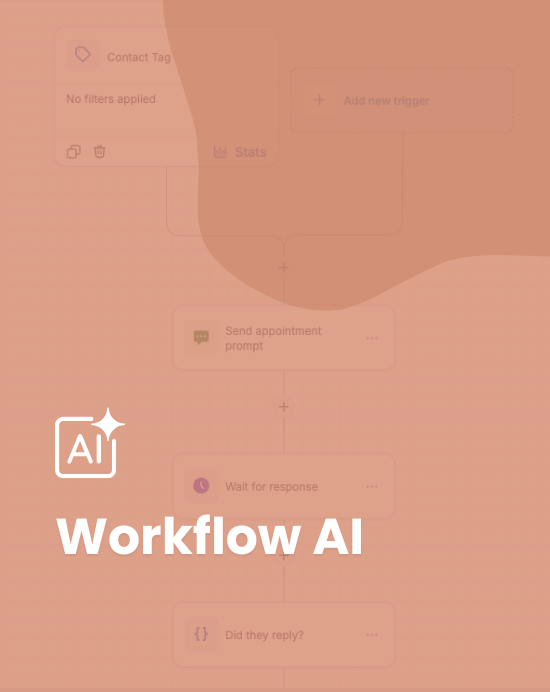
Facebook Comments + Workflow AI
Explore ways to combine supported social engagement events with workflow logic or AI-assisted actions. Verify the exact feature availability in your account.
View Workflow Templates →
Birthday Template
Send a timely birthday greeting or eligible offer when the necessary contact data is available. Check date fields and prevent duplicate sends.
View Workflow Templates →
Fast Five
Look for a structured quick-response workflow to help your team contact new inquiries promptly. Review the template's actual sequence and tailor it to your sales process.
View Workflow Templates →
Facebook Messenger
Explore workflow options for supported Messenger interactions. Confirm that your connected page, permissions, and intended messaging action are supported.
View Workflow Templates →
Appointment Reminder: 24h + 1h
Send reminders at two planned intervals before a booking. Confirm that the workflow handles rescheduled and cancelled appointments correctly.
View Workflow Templates →
Speed-to-Lead SMS + Email
Coordinate an initial text and email response after a lead comes in. Ensure your messages are appropriate, consent-based, and assigned to the right team.
View Workflow Templates →
Missed Call WhatsApp-Back
Explore a follow-up path for missed calls using WhatsApp where supported. Check integration requirements, contact permissions, and message delivery behavior.
View Workflow Templates →
Send Product Recommendations Using GPT-4 Turbo
Explore an AI-assisted recommendation workflow. Check model and integration availability, validate the information used, and review generated recommendations before relying on them.
View Workflow Templates →Image note: the gallery uses the image URLs you supplied. Some URLs repeat for multiple template names in your list, so the same thumbnail appears more than once. If you have separate screenshots for those templates, replace the repeated image URLs to make every card's preview unique.
Find a Workflow You Can Adapt Today
Browse the official library, choose a workflow that fits your business, and customize the triggers, actions, and messages before activating it.
Browse GoHighLevel Workflow TemplatesTemplates are a starting point, not a substitute for testing.
What Is a GoHighLevel Workflow?
A GoHighLevel workflow is an automated process built from a trigger and a series of actions. It can help you manage routine follow-up without requiring a team member to perform every step manually.
For example, when a prospect submits a form, a workflow might send a confirmation email, notify the assigned salesperson, wait a specified period, and then send a follow-up if the contact has not booked an appointment.
The workflow runs according to the conditions and settings you configure. It doesn't automatically understand every business exception, so you need to define what should happen when a customer replies, cancels, books, or changes status.
The main building blocks
Triggers
The event that starts the workflow, such as a form submission, appointment event, or supported contact update.
Actions
The steps performed after the trigger, such as sending a message, updating a record, or creating a task.
Wait steps
Delays that control when a later action runs, helping you space out messages and reminders.
Conditions
Rules that route contacts through different paths based on supported criteria or their actions.
These components let you create anything from a simple reminder to a multi-step lead nurturing process. If you're learning the platform, see our broader GoHighLevel automation guide for more examples.
How to Use a GoHighLevel Workflow Template
Templates can save setup time, but you still need to make them fit your business. Use this checklist whenever you load a workflow.
- Open the template library.
Visit the GoHighLevel workflow templates page and find a workflow related to the task you want to automate. - Check the template's purpose.
Review what it is intended to do, which events start it, and whether it depends on a calendar, phone configuration, integration, or other account asset. - Load it into your workflow editor.
Follow the current in-app instructions. Template availability and the import process may vary by template and account. - Replace sample content.
Update message copy, business details, links, custom values, calendar settings, and any placeholder information. - Review the trigger and logic.
Confirm when the workflow starts, whether contacts can enter more than once, how delays work, and what happens when a contact meets a condition. - Test the complete process.
Use a test contact and check the execution history. Verify messages, timing, routing, and any exit conditions before publishing. - Publish and monitor.
Once you are satisfied, activate the workflow and monitor its early runs for unexpected behavior or failed actions.
For additional help, consult HighLevel's official support documentation for the current workflow builder and template instructions.
Which Workflow Should You Start With?
| Your main goal | Template type to explore | What to check |
|---|---|---|
| Reply to new leads faster | Speed-to-lead or lead nurture | Lead source, consent, assignment, and follow-up timing. |
| Reduce missed appointments | Appointment confirmation and reminders | Time zone, cancellations, rescheduling, and reminder timing. |
| Keep subscribers engaged | Email drip or long-term nurture | List quality, relevance, frequency, and unsubscribe handling. |
| Win back inactive contacts | Reactivation or list re-engagement | Contact permissions, list quality, and previous opt-outs. |
| Collect customer feedback | Survey or review request | Timing, neutral wording, and review platform policies. |
| Respond to missed calls | Missed-call text-back | Phone setup, message permissions, and routing. |
| Respond to social engagement | Facebook or Instagram comment automation | Connected accounts, permissions, and supported triggers. |
How to Build a Simple Workflow From Scratch
If no template fits your needs, build a small workflow rather than trying to automate the entire customer journey at once.
Example: new inquiry follow-up
Trigger: A new lead submits a consultation form.
Action 1: Send a confirmation email with the next step.
Action 2: Notify the responsible team member.
Wait: Allow time for the lead to book.
Condition: Check whether the lead has booked, using supported workflow logic.
Next step: Route booked leads into the appointment process and send an appropriate follow-up to eligible leads who have not booked.
This is an example of the logic, not a guarantee that the sequence can be installed as one ready-made workflow. You may need to configure conditions, workflow exits, and connections to other automations.
Workflow Best Practices
Keep workflows focused
Give each workflow a clear purpose. A single automation that handles lead qualification, onboarding, review requests, and reactivation can become difficult to understand. Split unrelated processes when that makes them easier to manage.
Avoid duplicate messages
Review re-entry settings and trigger rules. Decide whether a contact should enter the same workflow again if they submit a form twice or update their details.
Respect contact preferences
Follow applicable email and SMS consent requirements and honor opt-outs. Do not assume that a contact who can receive one type of message is automatically eligible for every channel.
Monitor failures
If a workflow does not run as expected, check whether the trigger occurred, the contact passed the filters, and the workflow is published. Review execution history for skipped actions or errors.
Keep an eye on email deliverability
Correct sending configuration and relevant consent are important for email workflows. Read our guides to GoHighLevel email setup, GoHighLevel email automation, and GoHighLevel email warm-up.
Are GoHighLevel Workflows Worth It?
Workflows can be valuable for businesses that repeatedly handle inquiries, appointment bookings, follow-up messages, and customer communication. They can reduce manual work and make routine processes more consistent.
The biggest advantage is not the number of automations you create. It's whether the workflows reliably solve problems your team actually has. One well-tested lead response workflow may be more valuable than dozens of complicated automations that nobody monitors.
If you're comparing the platform with other tools, review our GoHighLevel features guide, GoHighLevel review, and GoHighLevel pricing guide before choosing a plan.
Choose a Template and Make It Your Own
Browse the workflow library, find a practical starting point, and test it with your own process before putting it to work.
Explore Workflow TemplatesFrequently Asked Questions
What are GoHighLevel workflows?
GoHighLevel workflows are automated sequences that run actions when specified triggers occur. They can be used for lead follow-up, appointment reminders, email sequences, customer onboarding, and other repeatable processes.
Does GoHighLevel offer ready-made workflow templates?
Yes. HighLevel offers a workflow template library. You can browse available templates and use a suitable one as a starting point, then customize and test it before activation.
Can I download a workflow template to my computer?
The usual workflow-template process is to select a template and load it into the HighLevel workflow editor. This is different from downloading a standalone file. For moving supported assets between accounts, investigate HighLevel Snapshots and their current sharing options.
Can I edit a workflow after using a template?
Yes. Review the triggers, actions, message content, delays, and conditions and change them to fit your business. Test the revised workflow before publishing it.
Can workflows send email and SMS messages?
Workflows can include email and SMS actions where the relevant features and account configuration are available. Check sending settings, consent, and opt-out behavior before using them with contacts.
Can workflows automate appointments?
Yes. Appointment-related workflows can support confirmations, reminders, and follow-up processes. Make sure cancellations and rescheduling are handled correctly so customers do not receive outdated reminders.
Can I reuse a workflow across multiple client accounts?
HighLevel Snapshots can help transfer supported assets between sub-accounts. Review the contents and dependencies before importing them, and verify which sharing features are available to your account.
Why isn't my workflow running?
Check that the workflow is published, the trigger occurred, the contact meets the conditions, and re-entry settings permit the expected behavior. Review the workflow execution history for errors or skipped steps.
Do I need coding skills to use workflows?
Most standard workflows can be built in the visual editor without writing code. More complex integrations or custom requirements may need additional technical setup.
Which workflow is best for beginners?
A simple new-lead response or appointment confirmation is a good starting point. It has a clear trigger and outcome, making it easier to test before moving to more advanced automations.
Affiliate disclosure: This page contains affiliate links. If you sign up through one of these links, we may earn a commission at no extra cost to you.
