GoHighLevel Automation: Build Smarter Workflows Without Starting From Scratch
Imagine a new lead filling out your form, receiving an instant response, getting useful follow-up messages, and reaching your calendar without your team handling every step manually. That's the idea behind GoHighLevel automation.
And here's the part worth knowing if you're new to it: you don't have to build every automation from a blank canvas. HighLevel offers workflow templates you can preview, load into the builder, customize, and test for your business.
Explore Workflow Templates Explore GoHighLevelAutomation is one of the most useful parts of GoHighLevel's features because it connects lead management, communication, appointments, and customer follow-up in one system. Instead of remembering every task yourself, you define what should happen when a specific event occurs.
In this guide, I'll explain how GoHighLevel automation works, which tasks are worth automating first, how to use the built-in workflow template library, and how to avoid common mistakes that can create confusing customer experiences.
What Is GoHighLevel Automation?
GoHighLevel automation is a way to make routine business tasks happen automatically when a defined event occurs. The main tool for this is the Workflows area inside the platform's Automation section.
A workflow has two basic parts:
- Trigger: The event that starts the automation.
- Actions: The tasks HighLevel performs after the trigger fires.
For example, someone submits a contact form on your website. That submission can trigger a workflow that creates or updates a contact, sends a confirmation email, alerts a team member, and waits before sending a follow-up.
You choose the logic. The workflow carries out the configured steps when its conditions are met and it is published.
How a simple automation works
A lead takes action
A person submits a form, books an appointment, receives a tag, or completes another supported event.
HighLevel responds
The workflow sends a message, updates a record, creates a task, or starts another configured process.
The next step is scheduled
A wait step can give the contact time to respond before the next message or action runs.
The workflow adapts
Conditions can route contacts down different paths based on their details or actions.
This is more flexible than a single automatic email. A workflow can combine multiple steps and decisions, allowing you to build a process around how your business actually works.
Start With GoHighLevel Workflow Templates
If you're new to automation, I wouldn't recommend building a complicated workflow from scratch as your first project. It's easy to overlook a trigger setting, send messages at the wrong time, or forget what happens after a contact replies.
Instead, start by exploring the official GoHighLevel workflow template library. It provides ready-made starting points that you can inspect and customize instead of manually adding every trigger and action.
The exact templates available may change. Use the library to find a workflow that fits your use case, then review its requirements and steps before using it with real contacts.

1. Browse ready-made workflows
Start with a template related to lead nurturing, onboarding, appointment management, or another task you repeat. Look at the description and any prerequisites before choosing it.
Browse workflow templates →
2. Find a suitable starting point
Use the available search and category filters to narrow your options. Check what the template does rather than choosing one based only on its name.
Explore the template library →
3. Review the workflow before loading it
Inspect its triggers, actions, timing, and requirements. Once you load it into the editor, adjust the steps to match your own pipeline, team, and communication rules.
Read the official template instructions →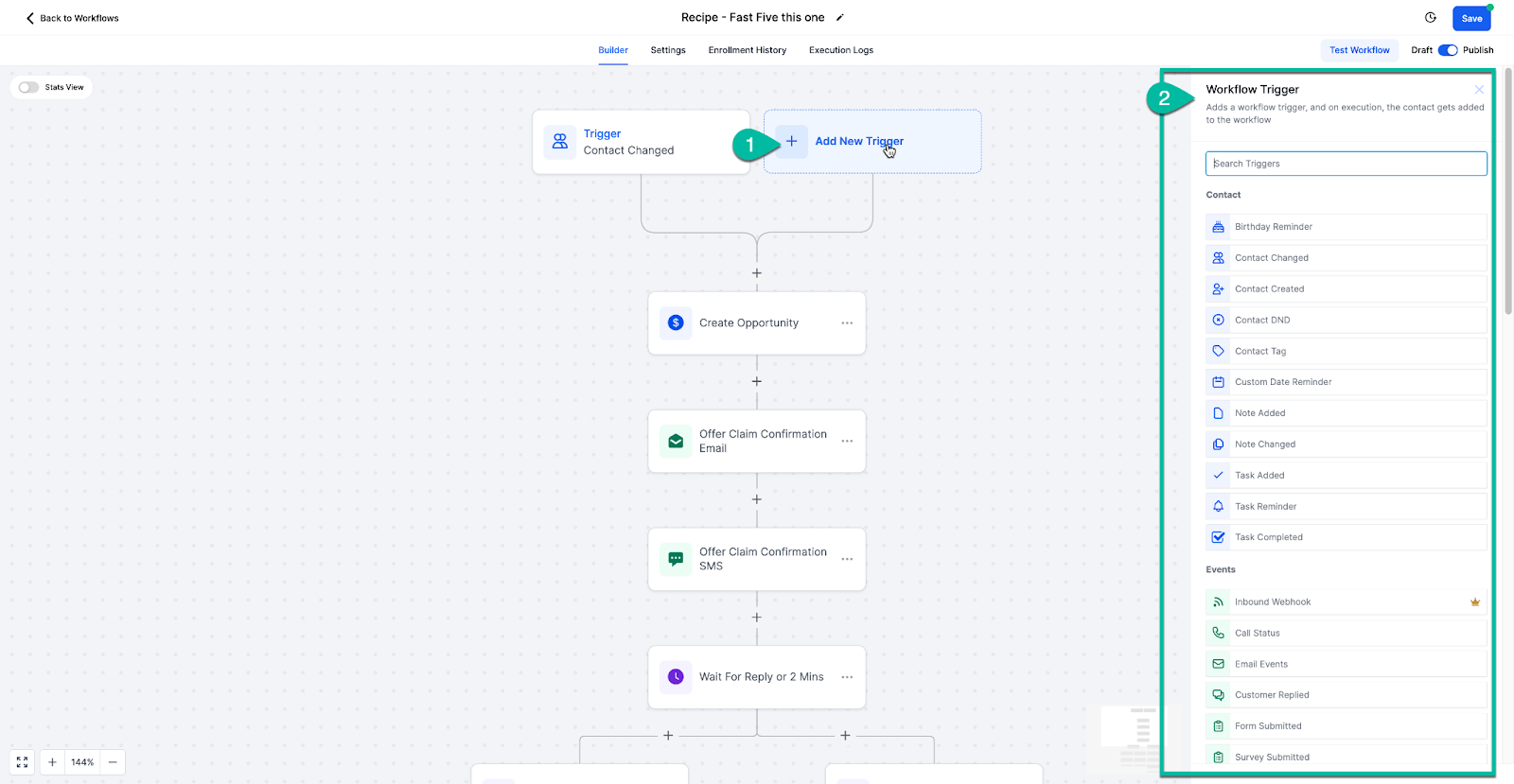
4. Customize and test the steps
Replace example messages, confirm the correct trigger, review delays and conditions, and test with a suitable contact before publishing.
Find your next workflow template →Important: These images are from HighLevel's official help documentation and demonstrate the workflow-template process. They are interface examples, not promises that every account will show the exact same template or screen. The available templates and interface may vary.
Don't Build Every Automation From Scratch
Explore the official template library, find a workflow that fits your business, and customize it before putting it into action.
Explore Workflow TemplatesTemplates provide a starting point. Review, customize, and test before publishing.
Which Tasks Should You Automate First?
The best automation is not necessarily the most complicated one. Start with a task that happens frequently, follows a predictable process, and is easy to check for errors.
| Business task | Possible trigger | Possible automated steps |
|---|---|---|
| New lead follow-up | Contact form submitted | Send a confirmation, notify the team, and schedule a relevant follow-up. |
| Appointment reminders | Appointment booked | Send a confirmation and appropriately timed reminders. |
| Lead qualification | Form submitted or tag added | Check contact details and route the lead to the appropriate pipeline or team. |
| Customer onboarding | Purchase completed or customer status updated | Send welcome information, create internal tasks, and share next steps. |
| Missed-call follow-up | Supported missed-call event | Send an appropriate response and create a task for a team member. |
| Review requests | Eligible service or customer event | Send a review request at a suitable time, subject to your policies and customer consent. |
| Inactive lead re-engagement | Defined period without activity | Send a relevant check-in or create a task for personal follow-up. |
These are examples of automation designs, not guarantees that a particular ready-made template exists for every row. Check the current library and the triggers available in your account before deciding how to implement a process.
1. New lead follow-up
Speed matters when someone requests information. If your team takes hours to reply, that person may contact another provider first.
A simple workflow could start when a new lead submits a form. HighLevel can send a confirmation, notify the assigned team member, and create a follow-up task. If you add an email sequence, keep each message useful and relevant rather than sending the same sales pitch repeatedly.
Read our guide to GoHighLevel lead management for more on organizing and following up with prospects.
2. Appointment booking and reminders
Appointment workflows can reduce manual reminders and help customers know what to expect. For example, a booking can trigger a confirmation, followed by a reminder before the appointment.
Be careful with timing, time zones, cancellations, and rescheduling. Test what happens when a customer changes their appointment so an old reminder doesn't go out for a time that no longer applies.
Explore GoHighLevel calendar if appointment scheduling is a central part of your process.
3. Email and SMS follow-up
A workflow can send an email or text after a contact performs a specific action. You can also add delays, conditions, and branches to make the sequence more relevant.
For example, a prospect might receive a helpful email after downloading a guide. If they book a consultation, the workflow should stop or change the sales follow-up path where appropriate. Make sure your workflow accounts for replies, opt-outs, and the contact's current status.
For a deeper look at email-specific use cases, read GoHighLevel email automation and GoHighLevel email campaigns.
4. Customer onboarding
Once a new customer signs up or completes a purchase, your team may need to send instructions, gather information, assign responsibilities, and schedule the next step.
A workflow can coordinate these actions and reduce the chance that someone gets missed. Keep unusual cases in mind: a customer who has already completed onboarding should not receive the same introductory sequence again unless that is intentional.
How to Set Up GoHighLevel Automation
You can start from a template or create your own workflow. The exact options depend on the current interface and your account's enabled features. If you're a beginner, use this process as a checklist.
-
Open Automation and Workflows.
In your HighLevel sub-account, open the Automation section and navigate to Workflows. Look for the option to browse templates or create a workflow. -
Choose a template or describe the workflow you need.
Browse the template library for a relevant starting point. Where the AI workflow builder is available, you may also be able to describe the process you want to create. If neither option fits, build the workflow manually. -
Confirm the trigger.
Decide exactly what event should start the workflow. For instance, choose the relevant form submission, appointment event, tag, or contact event available in your account. -
Review the actions.
Check every email, SMS, task, assignment, update, and other action. Replace sample copy and placeholders. Confirm that the actions make sense for your business. -
Set conditions and timing.
Add filters, wait steps, and if/else branches where needed. A contact who has booked a call may need a different follow-up path from someone who has not responded. -
Test the workflow.
Use a test contact and check the execution history. Confirm that the right trigger fires, messages are correct, and contacts follow the expected path. -
Publish and monitor.
Once you are satisfied, publish the workflow. Review execution logs and real-world behavior after activation, especially during the first few days.
For a visual walkthrough of the workflow builder, see HighLevel's official Getting Started with Workflows guide.
How Triggers, Actions, Delays, and Conditions Fit Together
Understanding the main building blocks makes it easier to edit a template without accidentally changing its purpose.
Triggers
Triggers determine when a workflow starts. Examples can include a form submission, appointment event, contact tag, or another supported event.
Actions
Actions determine what happens next. Depending on the available features and configuration, they can send messages, update records, assign tasks, or change opportunities.
Wait steps
Wait steps add time between actions. They can help prevent every message from arriving immediately after the trigger.
Conditions and branches
Conditions let the workflow follow different paths based on criteria. This can help separate customers, qualified leads, booked appointments, and other groups.
Example: a lead follow-up workflow
Trigger: A prospect submits a consultation form.
Action 1: Create or update the contact record and notify the responsible team member.
Action 2: Send a confirmation email explaining what happens next.
Wait: Allow time for the prospect to book a consultation.
Condition: Check whether an appointment has been booked, using the appropriate supported condition or workflow logic.
Path A: If booked, move the contact into the appointment follow-up process.
Path B: If not booked, send a useful follow-up or create a manual task.
This is an illustrative design, not a promise that one click creates this exact sequence. You may need to configure the conditions, re-entry rules, and connections between workflows to get the behavior you want.
GoHighLevel Automation Templates Worth Looking For
Rather than searching for a template that sounds impressive, search for one that solves a real operational problem. Here are several template types worth exploring in the official library.
New Lead Nurture
Best for: Businesses that receive inquiries from landing pages, forms, or campaigns.
Look for a workflow that responds to new inquiries, alerts the team, and schedules follow-up. Confirm that it uses the right lead source and avoids duplicate enrollment.
Find lead nurture templates →Booking Confirmation and Reminders
Best for: Consultants, agencies, clinics, and service businesses.
Look for booking confirmations, reminders, and follow-up actions. Review how cancellations and rescheduling are handled before activating it.
Find appointment workflows →New Customer Onboarding
Best for: Teams that repeat the same welcome and setup steps for each new customer.
Look for a workflow that delivers instructions, creates internal tasks, and helps the team follow a consistent process.
Explore workflow templates →Pipeline and Task Updates
Best for: Sales teams that need clearer ownership of leads and opportunities.
Look for workflow recipes that update records or create tasks when a defined event happens. Verify the correct pipeline stages and assignment rules.
Browse workflow recipes →Template names and availability can change, and not every template will suit every account. If you don't find a suitable workflow, use an existing template as inspiration or build a smaller version of the process yourself.
Workflow Templates vs. Building From Scratch
| Approach | Advantages | Things to watch |
|---|---|---|
| Use a ready-made template | Faster starting point; helps beginners understand workflow structure. | May include steps or assumptions your business does not need. |
| Build from scratch | Full control over the trigger, actions, conditions, and timing. | Requires more planning, configuration, and testing. |
| Use AI-assisted building | Can help turn a plain-language description into a workflow starting point when available. | Generated steps still need review, correction, and testing. |
My recommendation: use templates for common processes, then learn to modify the pieces that matter. Build from scratch when the process is genuinely unique or the available templates don't fit.
How to Make Your Automations More Reliable
Keep each workflow focused
A workflow should have a clear purpose. If one automation handles lead qualification, onboarding, billing reminders, review requests, and re-engagement, it becomes harder to test and maintain. Consider splitting unrelated processes into separate workflows.
Check duplicate enrollment
Review the workflow's re-entry settings and trigger conditions. If a contact submits the same form more than once, decide whether they should restart the sequence, be ignored, or enter a separate path.
Test the complete customer journey
Do not check only whether the first email arrives. Confirm that delays, conditions, task assignments, and exit paths behave as expected. Test common exceptions such as a reply, a booking, a cancellation, or a contact opting out.
Check message permissions and deliverability
Use appropriate consent and opt-out practices for email and SMS. Configure sending domains correctly, monitor email deliverability, and avoid sending messages to contacts who should not receive them. Our guides to GoHighLevel email setup and GoHighLevel email warm-up cover related email considerations.
Monitor workflow execution logs
If a workflow fails to run, check whether the trigger actually occurred, the contact met the filters, and the workflow was published. Then inspect execution history for skipped actions or errors. Test with a fresh contact when previous enrollment settings may affect the result.
Document important automations
Give each workflow a descriptive name and make its purpose clear. If multiple people manage your account, record what starts the workflow, who owns it, and which messages or actions it controls.
Common GoHighLevel Automation Mistakes
Publishing without testing
A wrong trigger or poorly configured condition can affect real contacts. Test with sample data before enabling a workflow.
Sending too many messages
More follow-ups don't automatically mean more conversions. Make messages useful, set sensible delays, and respect preferences.
Ignoring exceptions
Customers may reply, book, cancel, or change status during a sequence. Plan what should happen in those cases.
Leaving template placeholders
Review names, links, sender details, calendars, custom values, and message copy before activating a copied workflow.
Does GoHighLevel Automation Require Coding?
Most common workflows can be built using the visual workflow editor. You select triggers and actions, configure settings, and connect steps. You generally don't need to write code to set up standard follow-up, reminder, or contact-management automations.
More advanced requirements may involve webhooks, external integrations, custom values, or other technical configuration. The complexity depends on what you're trying to connect and what data must move between systems.
If you're new, don't begin with a complex integration. Start with one simple automation, test it, and add complexity only when you have a clear reason.
Is GoHighLevel Automation Worth Using?
It can be especially useful if your business handles many leads, sends repeated follow-ups, books appointments, or needs a consistent process across several clients. The benefit comes from connecting those tasks rather than handling each one manually.
However, automation isn't a substitute for a good process. If your messaging is confusing or your follow-up strategy is poor, automating it may simply repeat the problem faster. Start by improving the process, then use a workflow to carry it out consistently.
Before choosing a plan, consider how many users and sub-accounts you need, which communication features you'll use, and whether any usage-based charges or third-party services apply. See our GoHighLevel pricing guide and GoHighLevel hidden costs guide before making a decision.
Ready to Build Your First Workflow?
Start with a simple process, explore the template library, and customize a workflow that solves a real problem in your business.
Explore GoHighLevel Workflow TemplatesReview the current plan details and feature availability before signing up.
Frequently Asked Questions
What is GoHighLevel automation?
GoHighLevel automation uses workflows to run configured actions when specific events occur. Examples include sending follow-up messages, notifying staff, updating contact records, and managing appointment reminders.
Does GoHighLevel have workflow templates?
Yes. HighLevel provides a workflow template library where you can browse available templates, preview their structure, and load a suitable starting point into the workflow editor. Availability and the interface may change over time.
Can I download GoHighLevel workflow templates?
The normal workflow-template process is to select a template from the library and load it into your HighLevel workflow editor, then customize it. This is different from downloading a standalone file to your computer. If you need to reuse or transfer complete account setups, investigate HighLevel Snapshots and their sharing options.
Can I customize a workflow template?
Yes. After loading a template, review and adjust its triggers, actions, message content, delays, and conditions to fit your business. Always test the revised workflow before publishing it.
Can GoHighLevel automate email and SMS follow-ups?
Workflows can be configured to send email and SMS actions where the relevant features, settings, and permissions are available. Make sure your sending configuration is correct and follow applicable consent and opt-out requirements.
Can I use AI to create GoHighLevel workflows?
HighLevel has introduced an AI-assisted workflow-building option in its updated workflow experience. Availability may depend on your account and enabled features. Review and test any generated workflow rather than assuming it is ready for production.
Why is my GoHighLevel workflow not running?
Check that the workflow is published, the trigger occurred, the contact meets the filters, and the re-entry settings allow the expected behavior. Review execution history for skipped steps or errors, then test with a fresh contact if needed.
Do I need coding skills to use GoHighLevel automation?
No coding is usually required for common visual workflows. More advanced integrations, webhooks, or custom behavior may require additional technical setup.
Can I reuse workflows across multiple client accounts?
HighLevel Snapshots can capture supported account assets, including workflows, for reuse in other sub-accounts. Review the Snapshot contents and linked assets before loading them, and check any sharing restrictions that apply.
What is the best automation to build first?
A simple new-lead response or appointment confirmation is a practical starting point. Choose a process that happens often, has clear steps, and is easy to test before moving on to more complex workflows.
Disclosure: Some links on this page are affiliate links. If you sign up through them, we may earn a commission at no additional cost to you. This does not change our goal of providing practical, useful information.
